Hello! In this post I will go through how I built my text renderer in Unity. I will be using my systems I talked about in a previous post and show how I build upon them.
This is all for my game pixel based game ‘Traitors on the Train’. I wanted to make my own fonts instead of scouring dafont.com or something to find a font that vaguely resembled my specific style. I drew all my other sprites so why would text be any different.
Please keep in mind, this is not a step by step tutorial, rather it is a retrospective of my process creating my own text renderer and my understanding of how text renderers work. Ok lets continue…
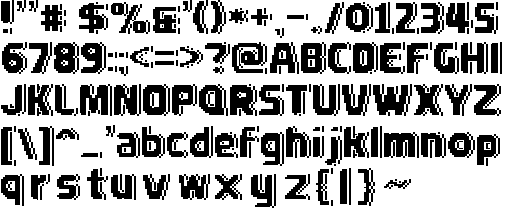
Being a pixel style game, I can already get away from a few challenges most text renderers need to face. First instead of reading a TTF file and handling vector based rendering (which is something I have not covered in my current rendering system), I can use a regular bitmap instead. I don’t need to scale any of my text nor do I want to because I have made it a hard rule that everything is true to size and avoid any filtering. This means any pixel I draw is exactly where it will be placed in the game.
You have noticed the atlas above is set in a familiar order, that is the ASCII table.
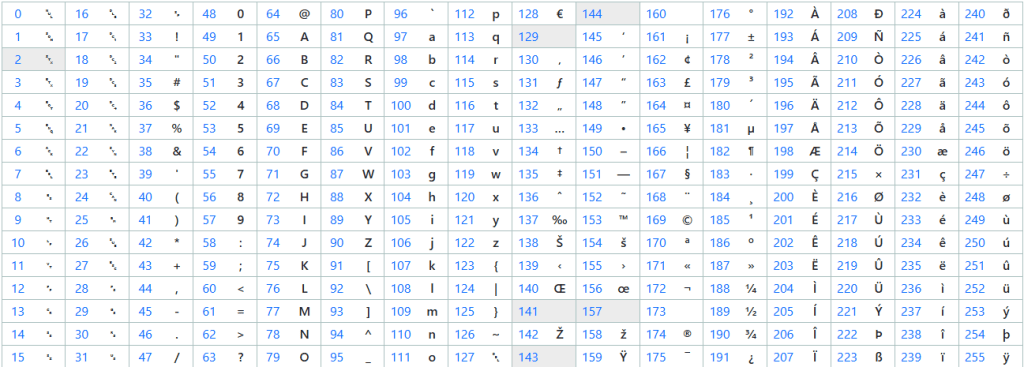
The first 33 symbols are non printable. Between index 32 to 126 are ASCII’s printable characters and the only ones I really care about.
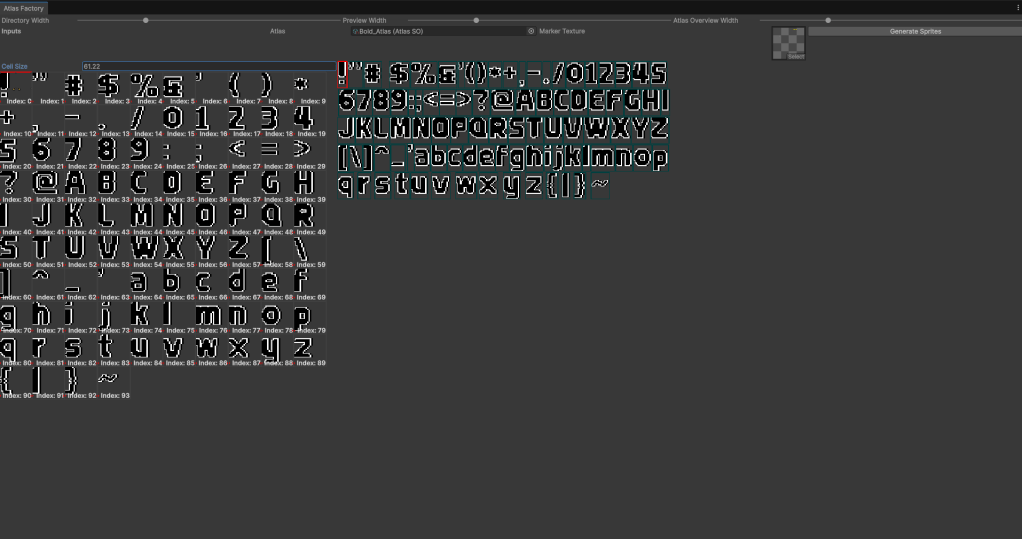
Putting them through my atlas factory, the exclamation mark is index 0 going all the way to tilde at index 93. Each character is treated like a separate sprite and the whole text will be one mesh.
Features Built
Basics
As always I’ll start with a data structure:
public struct TextBoxData
{
    public Vector2 size;
    public float[] lineWidthArray;
    public string[] lineTextArray;

    public float maxLineWidth;
    public int lineCount;
    public int charCount;
}
const int MAX_CHARS = 256;
const int MAX_LINES = 16;
I also define some memory constraints too. I’m not playing on having too much text for one renderer so I’ve made the maximum character length 256 and the maximum lines 16. Considering I’m using C# with Unity, I’d rather the memory to be occupied with a persistent array rather than a dynamic list to avoid garbage collection.
Now over to the function that actually sets the text:
public void SetTextWorld(string inputText, float alpha)
{
    if (inputText == null) return;

    text = inputText;

    textBoxData.lineCount = 0;
    textBoxData.charCount = 0;

    string curLineText = "";
    float curLineWidth = -kerning;
    float maxLineWidth = 0f;

    string[] words = text.Split(' ');
...
First I reset the line and character count to 0, ready to sum up that data. the curLineText will be the string of the current line. curLineWidth starts at the negative kerning value. This is because every word will always have one more character than space between characters which is important when calculating when there should be a new line. I also want to keep track of the max line width because that will determine the bounds width of the entire text. I then split the text into words using the Split() function so I can keep each word together without splitting a word between lines.
...
for (int i = 0; i < words.Length; i++)
{
    string word = words[i];

    float wordWidth = 0f;

    for (int j = 0; j < word.Length; j++)
    {
        char c = word[j];

        int letterIndex = c - 33;

        if (letterIndex < 0) continue;

        SimpleSprite sprite = textAtlas.atlas.simpleSprites[letterIndex];

        wordWidth += sprite.worldSize.x + kerning;
    }

    float spacingWidth = curLineText.Length > 0 ? spacing : 0f;
    float newLineWidth = curLineWidth + spacingWidth + wordWidth;

    if (curLineText.Length > 0 && newLineWidth > textBoxData.size.x)
    {
        textBoxData.lineTextArray[textBoxData.lineCount] = curLineText;
        textBoxData.lineWidthArray[textBoxData.lineCount] = curLineWidth;
        textBoxData.lineCount++;
        curLineText = word;
        curLineWidth = wordWidth - kerning;
        if (curLineWidth > maxLineWidth) maxLineWidth = curLineWidth;
    }
    else
    {
        if (curLineText.Length > 0) curLineText += " ";

        curLineText += word;
        curLineWidth = newLineWidth;
    }

    if (curLineWidth > maxLineWidth) maxLineWidth = curLineWidth;
    textBoxData.charCount += word.Length;
}
...
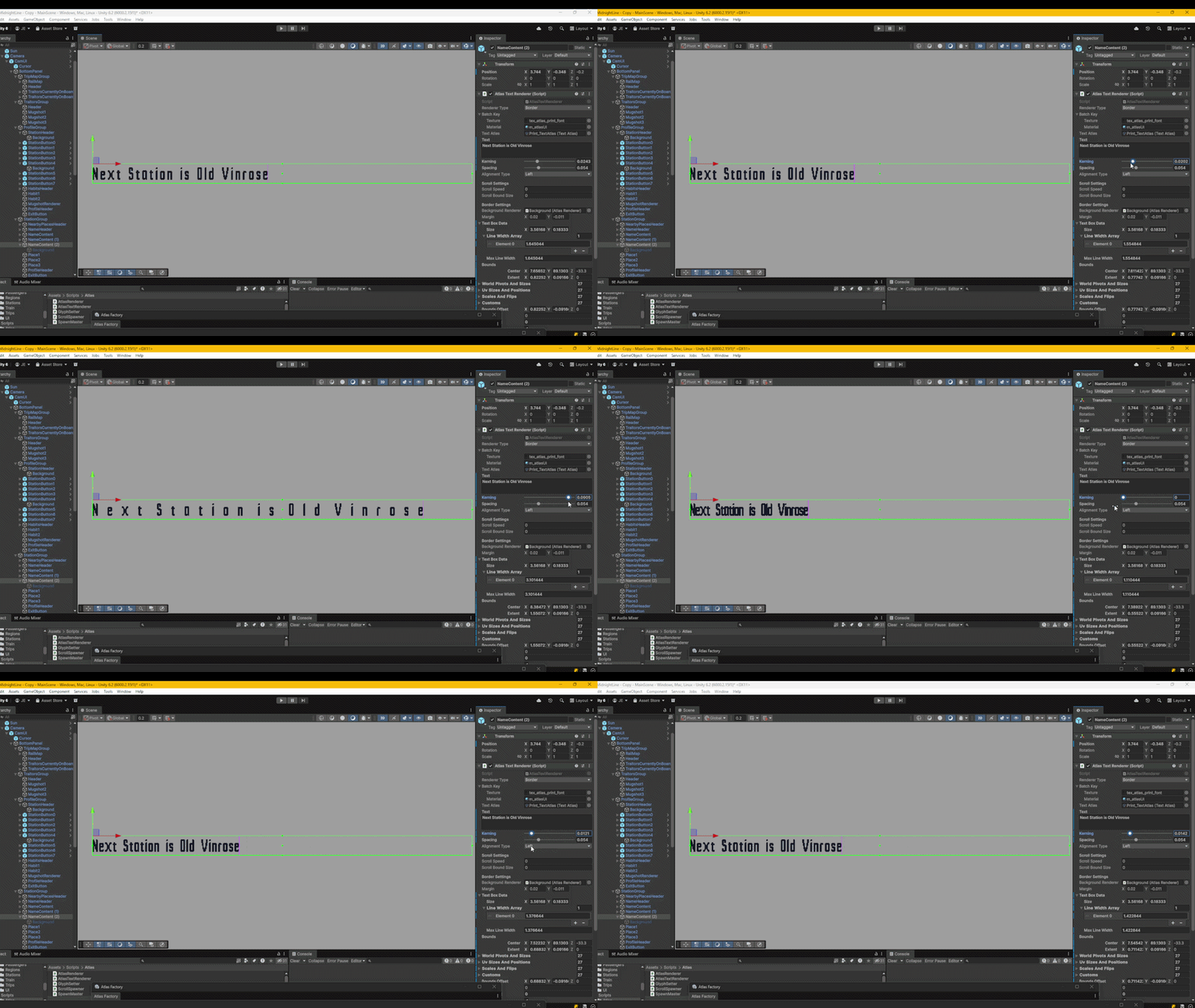
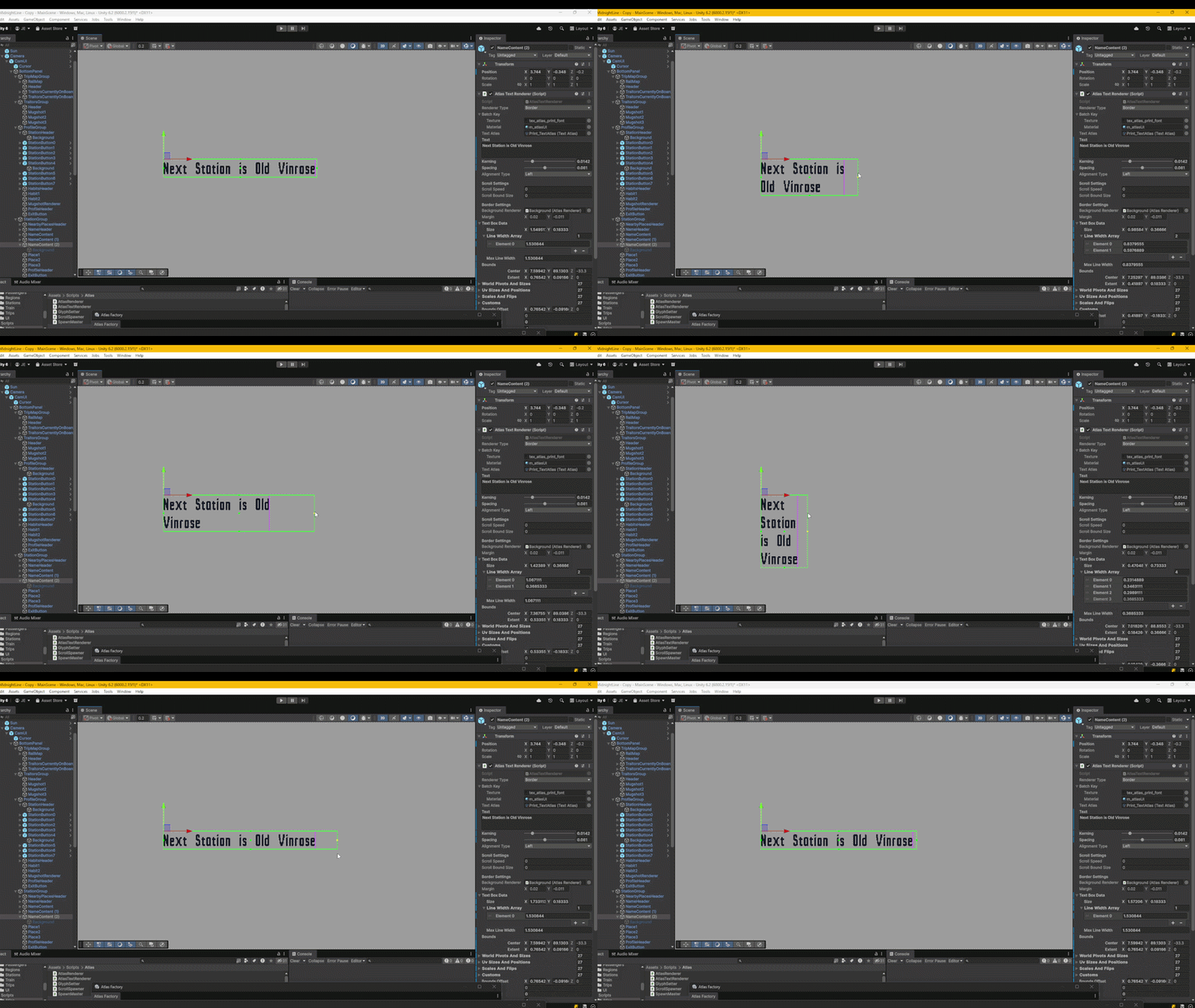
Here come the nested loops. The first nested loop is to calculate the textbox data for the second loop to read. For the outer loop, I iterate through each word of the text and for the inner loop, I iterate through each character. The letterIndex you’ll notice is subtracted by 33. This is because of the ASCII indexing I mentioned above where the printable characters start at index 33. I can look up the character sprite from my atlas with that index. All I need from the sprite at the moment is the world width to then add on to the wordWidth. The kerning value is then added on top for each character. After iterating through the current word, I add the curLineWidth to the spacingWidth between each word as well as the wordWidth that was just calculated. I test to see if the newLineWidth is larger than the text box width. If it is, I know a new line should start. I initially thought the curLineWidth should reset to 0, because it’s a new line.
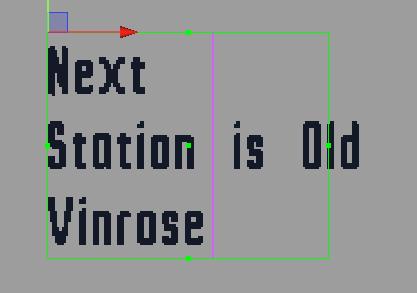
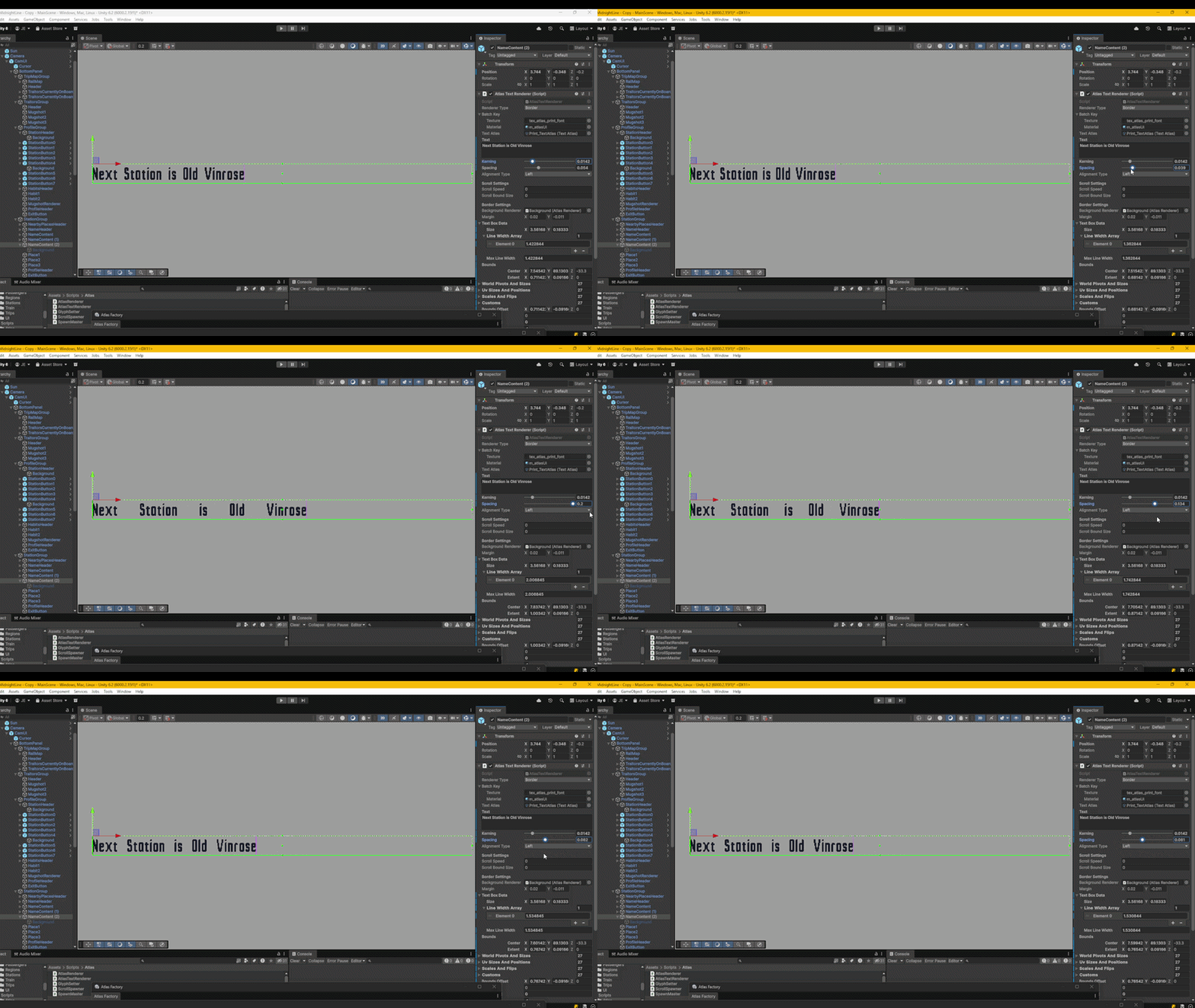
But I quickly found out that was wrong shown here where the word “Old is outside the text box. How do I handle the word that triggers the new line to occur? Well this word would be the first of the new line so whatever that word is needs to snap there, meaning the curLineWidth resets to the wordWidth minus the kerning value because there’s no kerning spacing before the first word of each line. If the newLineWidth is not greater than the textbox width, it’s a little easier, we just continue that line adding back a space for the next word and updating the curLineWidth. In the end of the outer loop I update the maxLineWidth if needed and accumulate the character count.
...
float curPosY = -textAtlas.typeWorldHeight;
...
So we now know the length of each line, but what about the height? This is determined but the tallest letter of the font where I cache the height value in the variable typeWorldHeight. This is stored in the atlas and calculated in edit time.
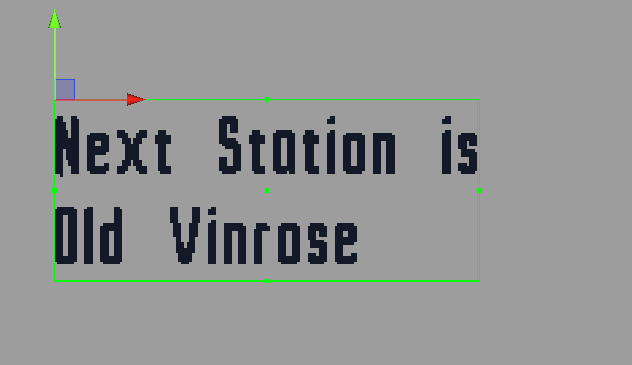
Another thing to note is where the transform lies which at the top and the x axis is determined by the alignment type which I’ll explain later. For now, I want to write left to right, top to bottom so having the transform here means no matter how long or tall the text is, the world position won’t change. Relating back to the code, the curPosY starts as the negative of typeWorldHeight because my character sprites pivots are on the bottom left. I need to offset the first line by that height downwards. I can now start my second nested loop.
...
for (int i = 0; i < textBoxData.lineCount; i++)
{
    string line = textBoxData.lineTextArray[i];
    float lineWidth = textBoxData.lineWidthArray[i];

    float curPosX = 0;

    if (alignmentType == AtlasTextAlignmentType.Center)
    {
        curPosX = -(lineWidth * 0.5f);
    }
    else if (alignmentType == AtlasTextAlignmentType.Right)
    {
        curPosX = -lineWidth;
    }

    for (int  j = 0; j < line.Length; j++)
    {
        char c = line[j];

        if (c == ' ')
        {
            curPosX += spacing;
            continue;
        }

        int letterIndex = c - 33;

        if (letterIndex < 0) continue;

        SimpleSprite sprite = textAtlas.atlas.simpleSprites[letterIndex];

        Vector4 worldPivSize = new Vector4();

        worldPivSize.x = curPosX;
        worldPivSize.y = curPosY;
        worldPivSize.z = sprite.worldSize.x;
        worldPivSize.w = sprite.worldSize.y;
        worldPivotsAndSizes[spriteIndex] = worldPivSize;

        uvSizesAndPositions[spriteIndex] = sprite.uvSizeAndPos;
        scalesAndFlips[spriteIndex] = Vector4.one;

        spriteIndex++;

        curPosX += sprite.worldSize.x + kerning;
    }
    curPosY -= textAtlas.typeWorldHeight;
}

textBoxData.size.y = Mathf.Max(Mathf.Abs(curPosY + textAtlas.typeWorldHeight), textAtlas.typeWorldHeight);
bounds.size = new Vector2(maxLineWidth, textBoxData.size.y);
...
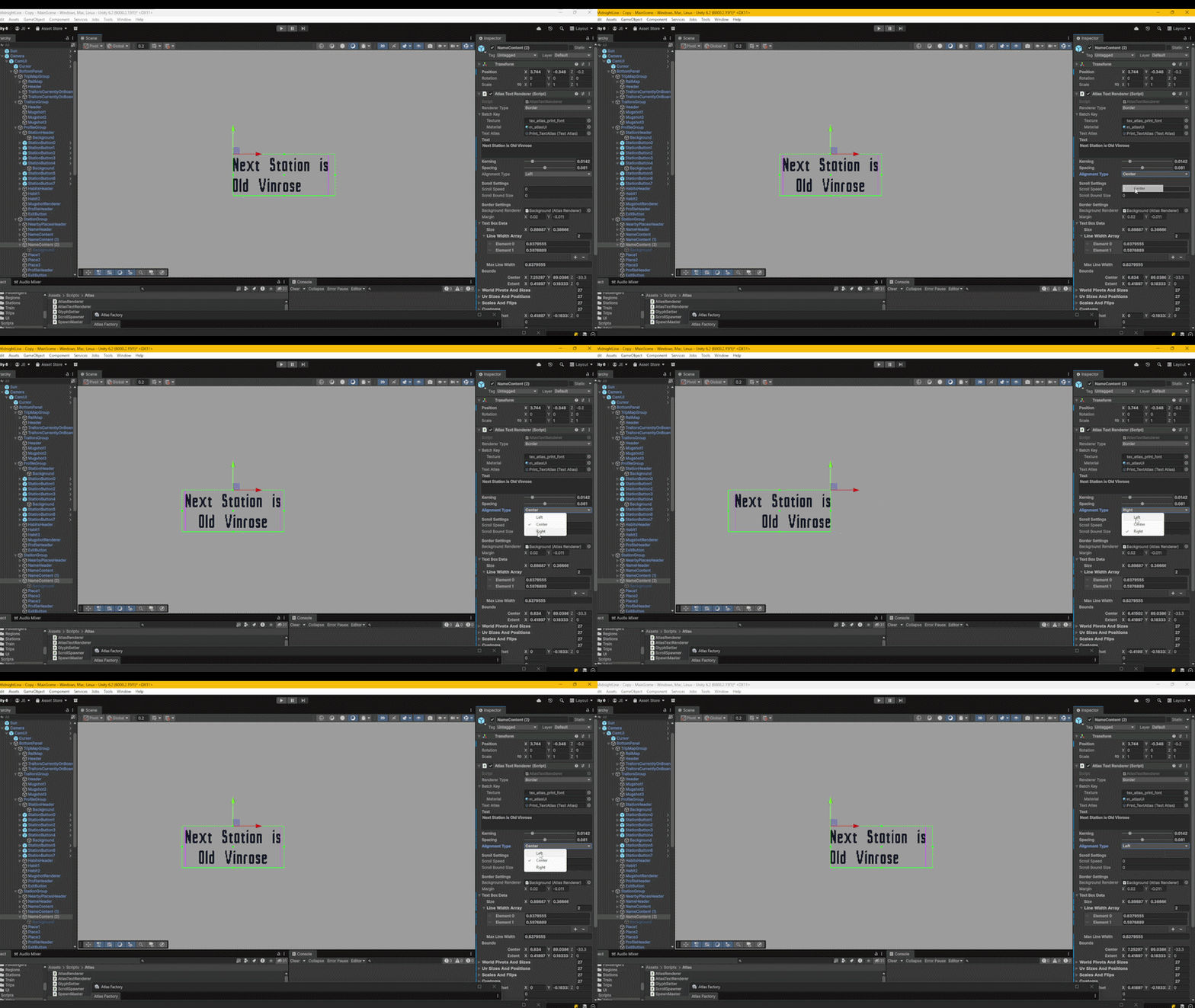
The outer loop iterates through each line I calculated earlier. This is where I handle my alignments to bare with me as I will include that too. The curPosX starts at 0 if the alignment type is on the left which is the default case. Otherwise the curPosX starts in the middle of the lineWidth if the alignment type is Center or at the end of the lineWidth if the alignment type is Right. The inner loop iterates through the line characters and look up the character sprites again. This time I store the data for my Renderer Feature to hand off to the GPU to render in my shader. The sprite information is already cached in edit time so I just need to fill the arrays of worldPivotsAndSizes and uvSizesAndPositions and the scalesAndFlips with the sprite data and then add onto the curPosX after for the next character sprite. When the line ends curPosY offsets downwards by the typeWorldHeight. This all could’ve been done in one nested loop but the problem became apparent when I added alignments. Going left to right or right to left is easy because I can just append each character to the following position without any other characters moving. The center alignment is a different story.
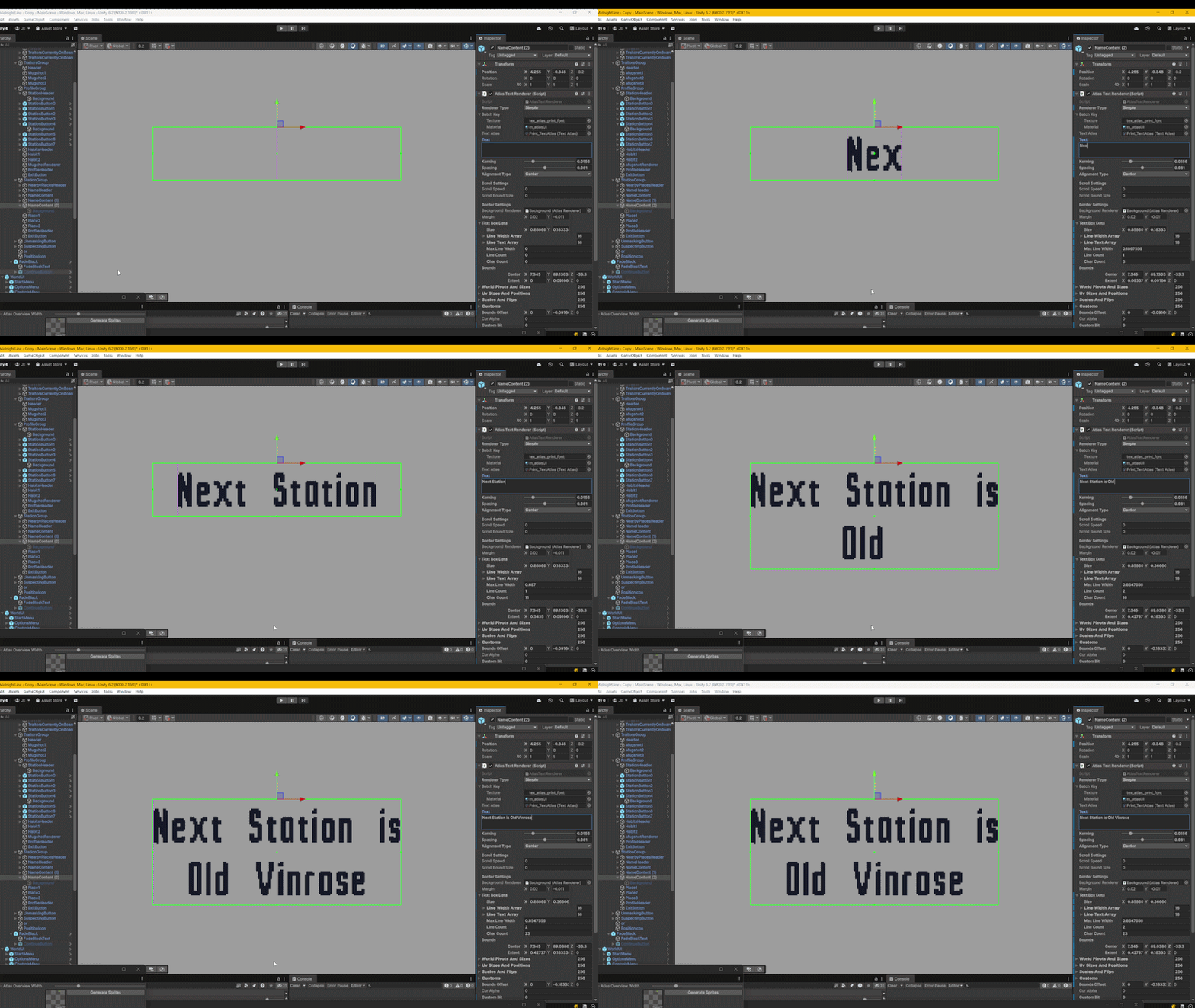
Each character’s position depends on the characters in front of it, so I saw no other way other than to pre compute the line widths first. Just another thing I didn’t see coming as I was making this.
Text Box Editor
This is just a quick walkthrough here, but I think it good to show some Unity Editor API.
[CustomEditor(typeof(AtlasTextRenderer))]
public class AtlasTextRendererEditor : Editor
{
    BoxBoundsHandle boundsHandle = new BoxBoundsHandle();

    Vector4 custom;
    private void OnSceneGUI()
    {
        AtlasTextRenderer textRend = (AtlasTextRenderer)target;
        EditorGUI.BeginChangeCheck();

        switch (textRend.rendererType)
        {
            case AtlasTextRenderer.AtlasTextRendererType.Simple:
            case AtlasTextRenderer.AtlasTextRendererType.Border:
            {
                boundsHandle.size = textRend.textBoxData.size;

                float centerX = textRend.transform.position.x;

                switch (textRend.alignmentType)
                {
                    case AtlasTextRenderer.AtlasTextAlignmentType.Left:
                    {
                        centerX += boundsHandle.size.x * 0.5f;
                    }
                    break;

                    case AtlasTextRenderer.AtlasTextAlignmentType.Center:
                    {

                    }
                    break;

                    case AtlasTextRenderer.AtlasTextAlignmentType.Right:
                    {

                        centerX -= boundsHandle.size.x * 0.5f;
                    }
                    break;
                }


                boundsHandle.center = new Vector3(centerX, textRend.transform.position.y - boundsHandle.size.y * 0.5f, textRend.transform.position.z);
                boundsHandle.SetColor(Color.green);
                boundsHandle.DrawHandle();

                if (EditorGUI.EndChangeCheck())
                {
                    Undo.RecordObject(textRend, "Resize Textbox");
                    textRend.textBoxData.size = boundsHandle.size;
                    textRend.SetText(textRend.text);
                }
            }
            break;
...
Unity already has a bunch of editor tools built into every game object so it’s a different mindset here. I inherit from Editor where I have access to the OnSceneGUI() function. To refer to the instance of my text renderer you cast the `target` (which is a Unity Object inherited from Editor), to the type to access all the functions and variables I assigned. Using the type BoxBoundsHandle from the UnityEditor.IMGUI.Controls class, I get access to the green box editor tool. This is the same tool 2D box colliders use. If you don’t want a 2D box collider but need this draw tool, doing it this way is a nice alternative and you have more control over it’s behaviour. Plus you don’t get any of the other bloated unused data colliders have that you may not need. To tell Unity when to start looking for editor changes, you call EditorGUI.BeginChangeCheck(). The text scroll type uses a different scene GUI system, but the simple and border types are the same. the BoxBoundsHandle is mostly the same as a regular Bounds so to define it’s shader you need a Vector3 center and a Vector3 size. The center on the x axis is dependant on the alignment type. I start at the world position and either offset left or right by half the boundsHandle width. The user gets to control the size or at least the width which is all I need. To get the frame the boundsHandle changes, you call EditorGUI.EndChangeCheck() inside an if statement. From there you can override the textbox size but also you need to record that change for the undo stack. Unity has Undo.RecordObject() for that.
Background Borders
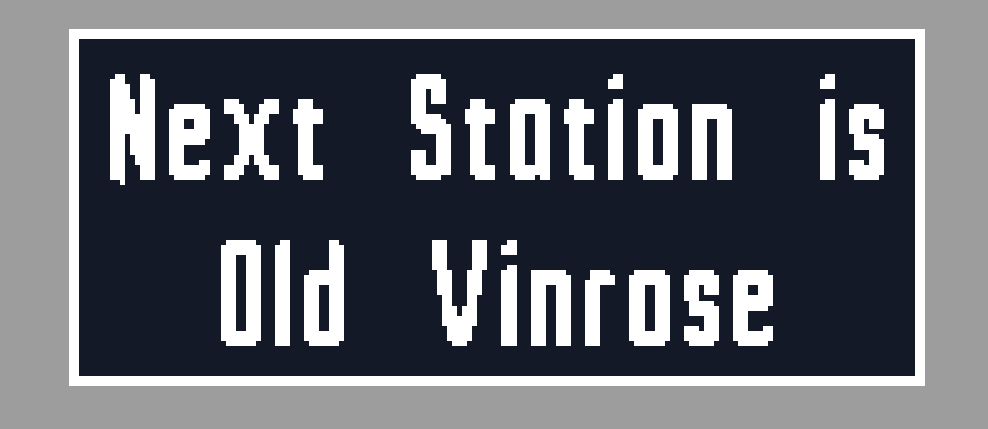
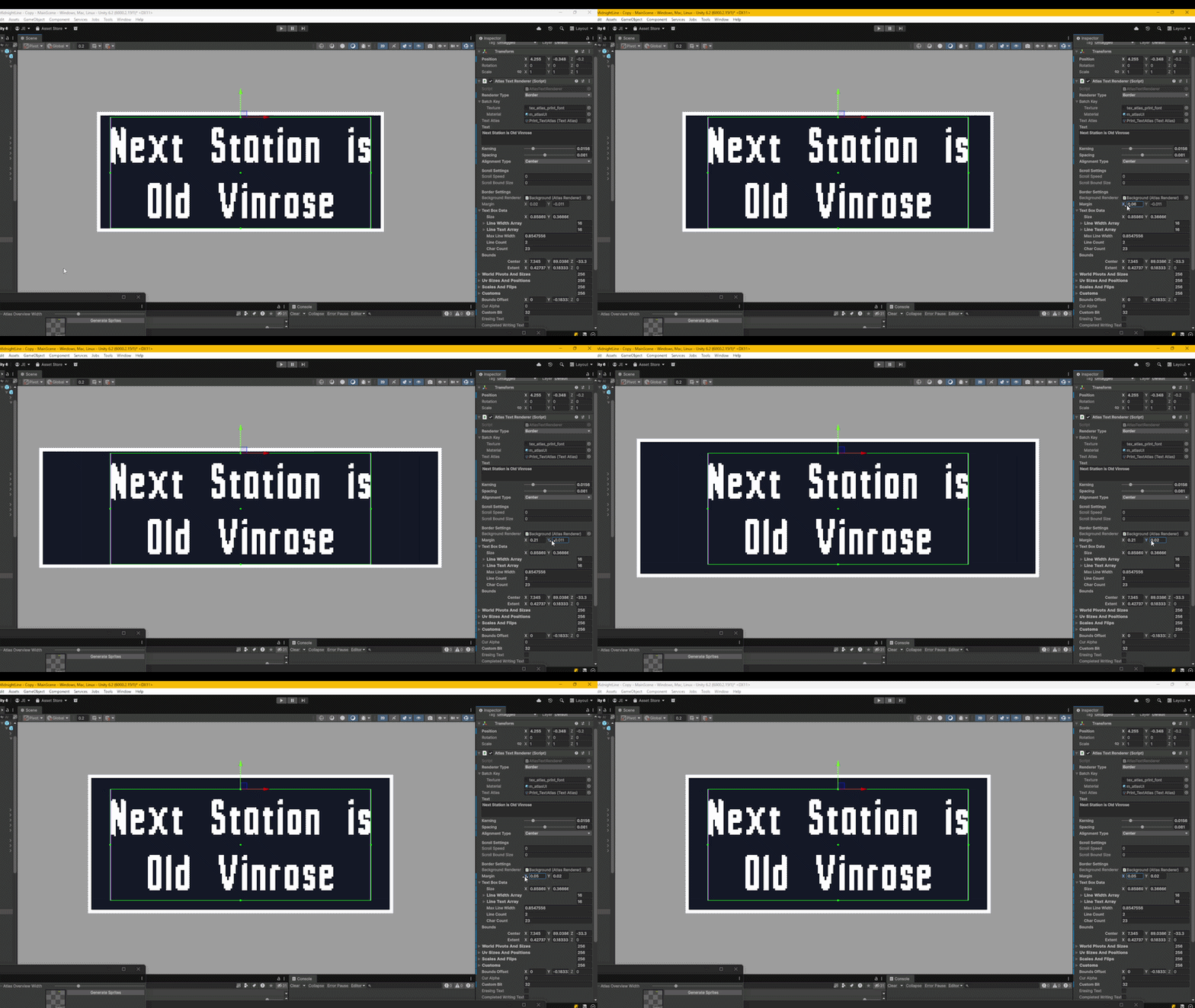
The background is a separate game object using my regular sprite renderer under the nine slice setting. I have not made a post explicitly about 9 nine slicing however I do have a LinkedIn post here .
private void SetBorderText()
{
    switch (alignmentType)
    {
        case AtlasTextAlignmentType.Left:
        {
            borderLocalPos.x = bounds.extents.x;
        }
        break;

        case AtlasTextAlignmentType.Center:
        {
            borderLocalPos.x = 0;
        }
        break;

        case AtlasTextAlignmentType.Right:
        {
            borderLocalPos.x = -bounds.extents.x;
        }
        break;
    }

    borderLocalPos.y = -textBoxData.size.y - backgroundRenderer.worldPivotsAndSizes[0].w - margin.y;
    borderLocalPos.z = backgroundRenderer.transform.localPosition.z;

    backgroundRenderer.enabled = true;

    Vector2 worldSize = new Vector2();
    worldSize.x = bounds.size.x + (margin.x * 2);
    worldSize.y = bounds.size.y + (margin.y * 2);

    backgroundRenderer.transform.localPosition = borderLocalPos;

    backgroundRenderer.SetNineSliceSizeFromWorldSpace(worldSize);
}
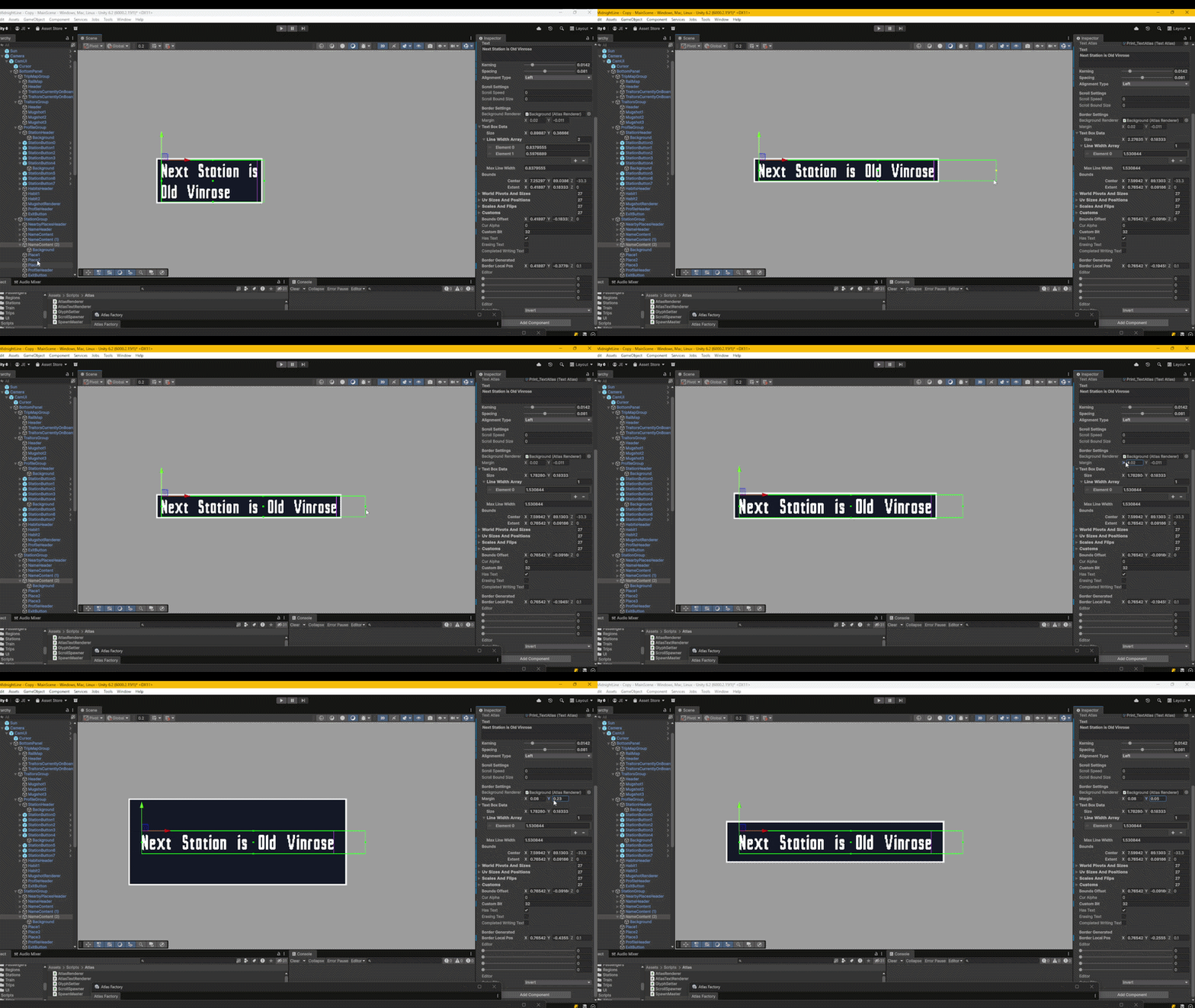
I treat the background sprite like a bounding box so the code here is sort of similar to my text box editor tool. The background sprite is parented to the text and I use the localPosition to offset it depending on the alignment type. It offsets by half the bounds yet again. I also added a Vector2 margin so I can control the width and height of the background.
Scrolling Text
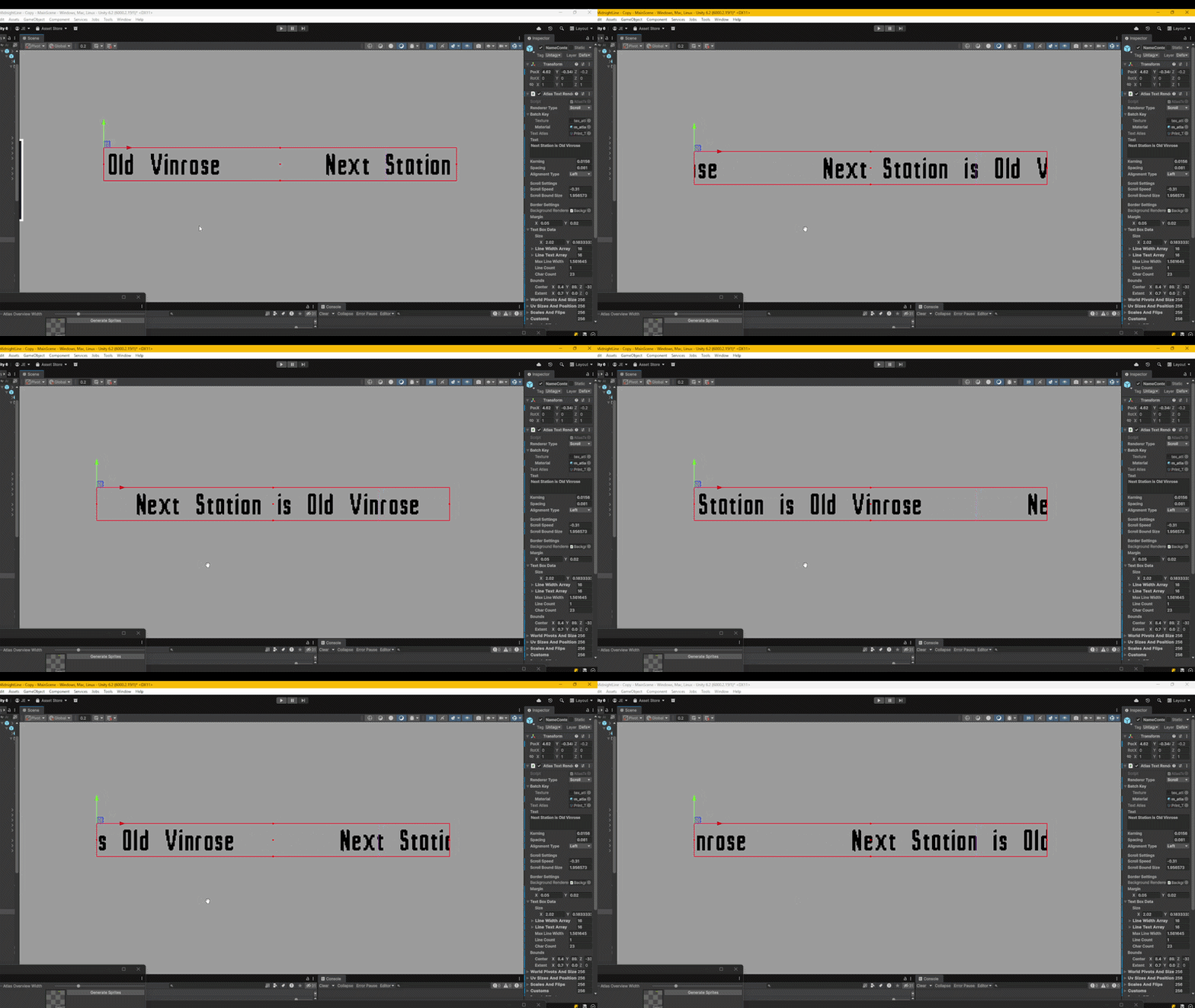
This was a fun one and such an extreme edge case, but I wanted it for my carriage signs. So unlike the other two renderer types, this type requires a specific shader to go along with it. I’ll show the shader first.
Varyings vert(Attributes v)
{
    Varyings o;

    AtlasSprite spriteData = _SpriteData[v.instanceID];

    float3 position = spriteData.position.xyz;
    float2 pivot = spriteData.pivotAndSize.xy;
    float2 size = spriteData.pivotAndSize.zw;

    float textBoundWidth = spriteData.custom.x;
    float scrollBoundWidth = spriteData.custom.y;
    float scrollSpeed = spriteData.custom.z;
    float scrollingBackwards = spriteData.custom.w;

    float buffer = 0.1;
    float repeatWidth = max(scrollBoundWidth, textBoundWidth);

    float time = _Time.y * scrollSpeed;

    float2 objPos = v.positionOS.xy;
    objPos *= size;

    float bufferSign =  buffer * (scrollingBackwards * 2 - 1);
    objPos.x += fmod(time + pivot.x, repeatWidth + (buffer * 2)) + bufferSign;
    objPos.x += repeatWidth * scrollingBackwards;

    objPos.y += pivot.y;
    float3 worldPos = float3(position.xy + objPos, position.z);

    o.objPos = objPos;
    o.positionHCS = TransformWorldToHClip(worldPos);
    o.uv = v.uv;
    o.uvSizeAndPos = spriteData.uvSizeAndPos;
    o.scrollBoundWidth = scrollBoundWidth;

    return o;
}
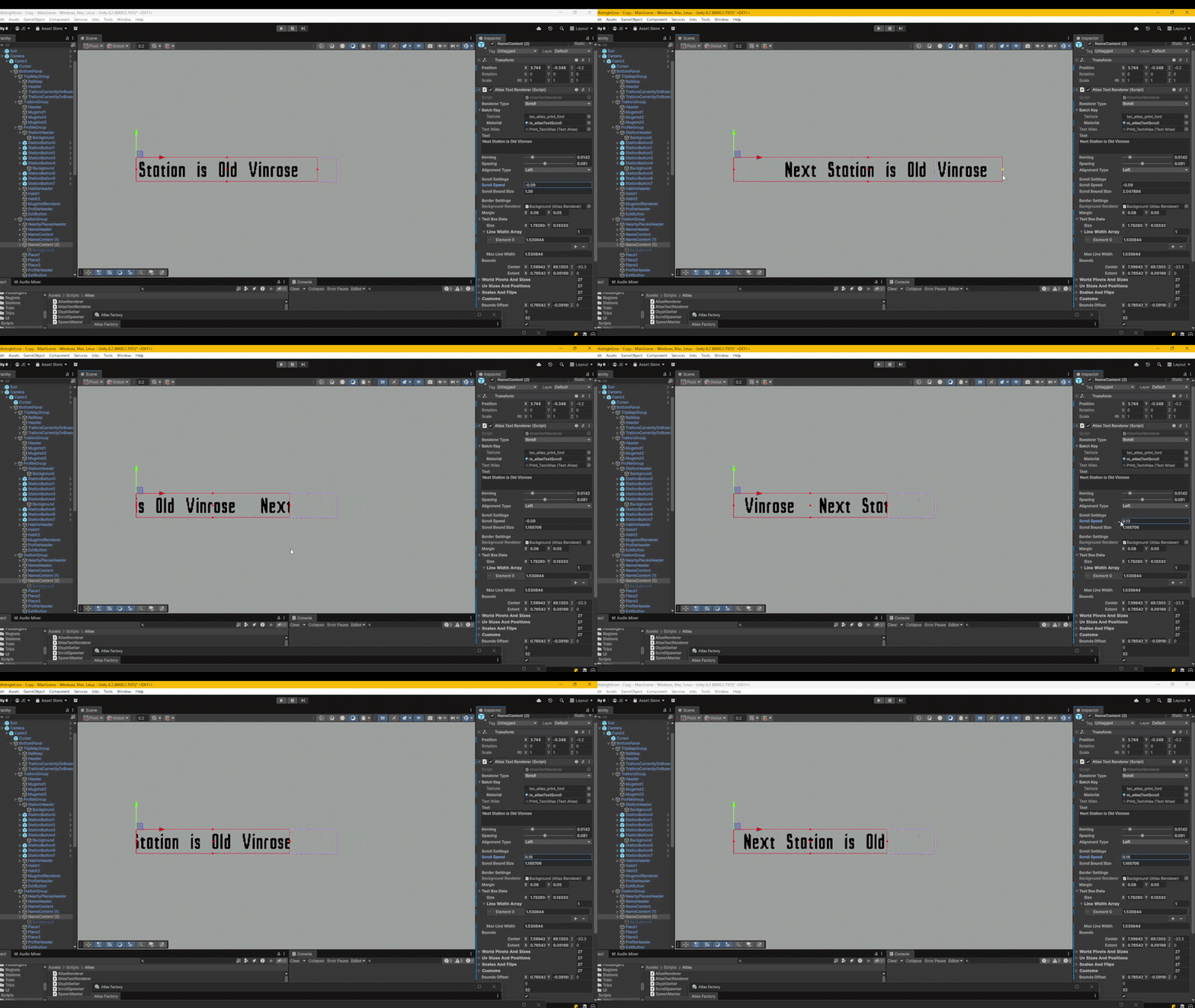
The vertex pass is the only bit really worth mentioning here as the fragment pass just samples and renders the sprites. To optimise sprite batching, I pass in an extra vector for each of my renderers called custom. This vector4 can store whatever else I specifically want from the CPU. In the x channel i store the text bounds width which is the width of the raw text represented as the purple box. In the y channel I store the width of the scroll bounds which is represented as the red box. The speed in the z channel and which way it scrolls in the w channel. repeatWidth is the max between the two widths. Which ever is greater is where the characters will reset too. To offset the x position I use the modulo or fmod in HLSL which returns the remainder of a division. The dividend is time the pivot.x (which is the left side of the character sprite). and the divisor is the repeatWidth with a buffer. The reason for a buffer here is because the bounds represent the width of the text, but I need the width plus a little more so the position doesn’t repeat until the whole character sprite is outside the scrolling bounds. Considering every letter has a different width, I give it a generic buffer value that does a good enough job. Not great because it’s sort of a guess, but so far I can get away with it. If it is scrolling backwards the buffer needs to be on the other side too which is where objPos.x += repeatWidth * scrollingBackwards; comes from. This is what the vertex pass is doing close up where you can see that buffer.
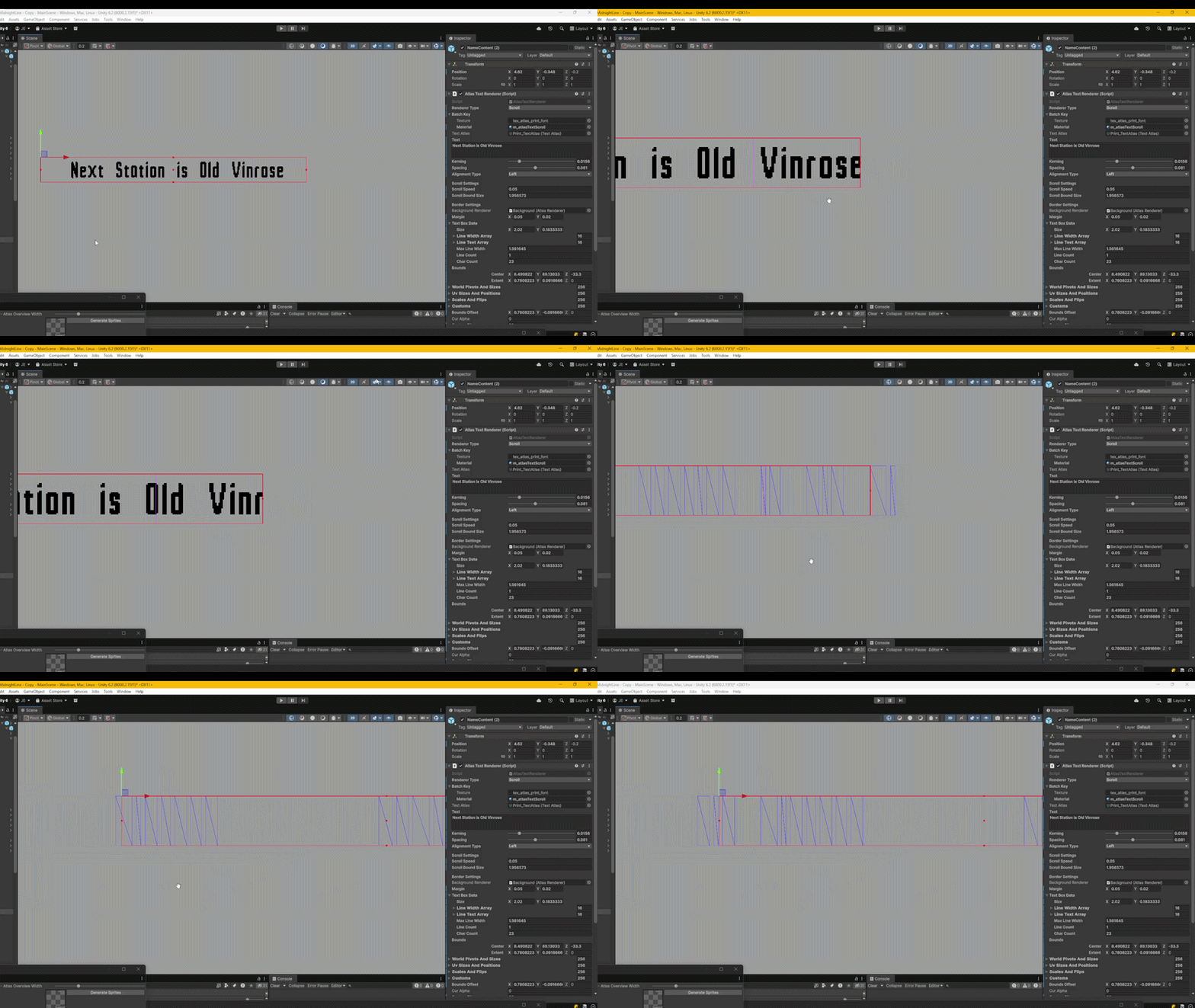
The rest is regular vertex instructions for sprites.
private void SetScrollingText()
{
    for (int i = 0; i < customs.Length; i++)
    {
        Vector4 custom = customs[i];
        custom.x = bounds.size.x;
        custom.y = scrollBoundSize;
        custom.z = scrollSpeed;
        custom.w = scrollSpeed < 0 ? 1 : 0;
        customs[i] = custom;
    }
}
Over to the CPU I just pass in the custom data from the renderer. Not much else.
That’s All For Now
Thanks for reading this far and hopefully it made some sense. I’ll get a post about 9 slicing done sometime soon. See Ya!